


Categories
Recommend
-

Sansi Four-column Electro-hydraulic Servo Pressure Tester: One Machine for Anti-collision Beam, Threshold Beam & Energy Absorption Box Testing
-
Analysis of Technology and Application of Sansi Testing's Chaoyue Series C-EUT5000 Electronic Universal Testing Machine
-
Good News | Shenzhen Sansi Testing Re-Assessed as National High-Tech Enterprise, Focusing on Innovation in Mechanical Testing Equipment
-
Full-Automatic Metal Pendulum Impact Testing Machine Delivered by Sansi Testing: Breaking Through Extreme Temperature Material Testing for Aerospace & Advanced Manufacturing
-
Core Function of SANS Electronic Universal Testing Machine (Tensile Machine) and How to Ensure Its Accuracy and Reliability



Contact Us

Service Hotline:
4008-482-582

Business Consulting :
Mr. Bi
139-2342-3642

Email:
vip@saastest.cn

Address:
215, Building Al, Kechuang Park, Songbai Road, Longteng Community, Shiyan Street, Baoan District, Shenzhen
Daily maintenance and troubleshooting of the electronic universal testing machine by Sansi Testing
Author:Shenzhen Saas Testing Technology Co., Ltd
Click:
Time:2024-08-08 00:00:00
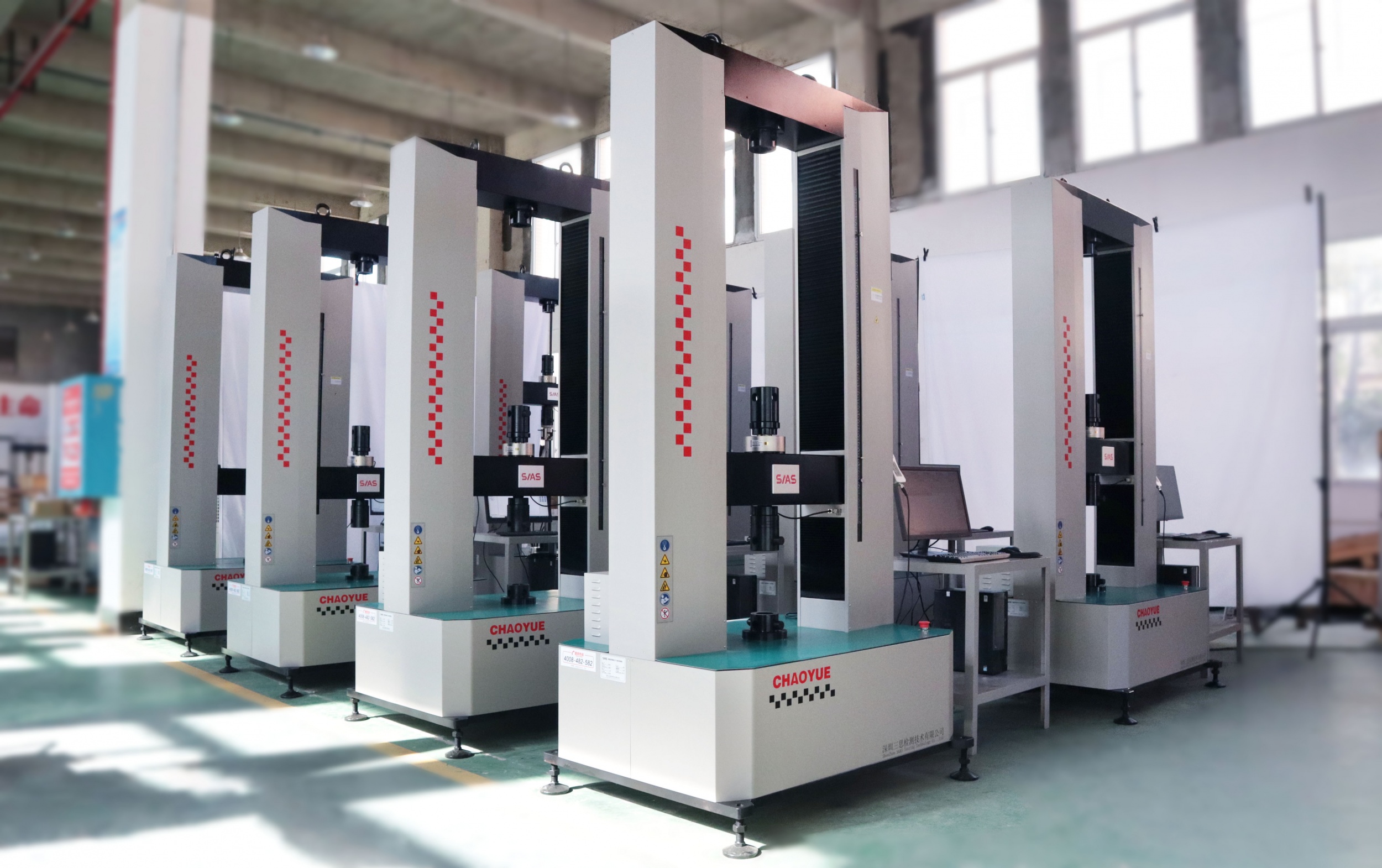
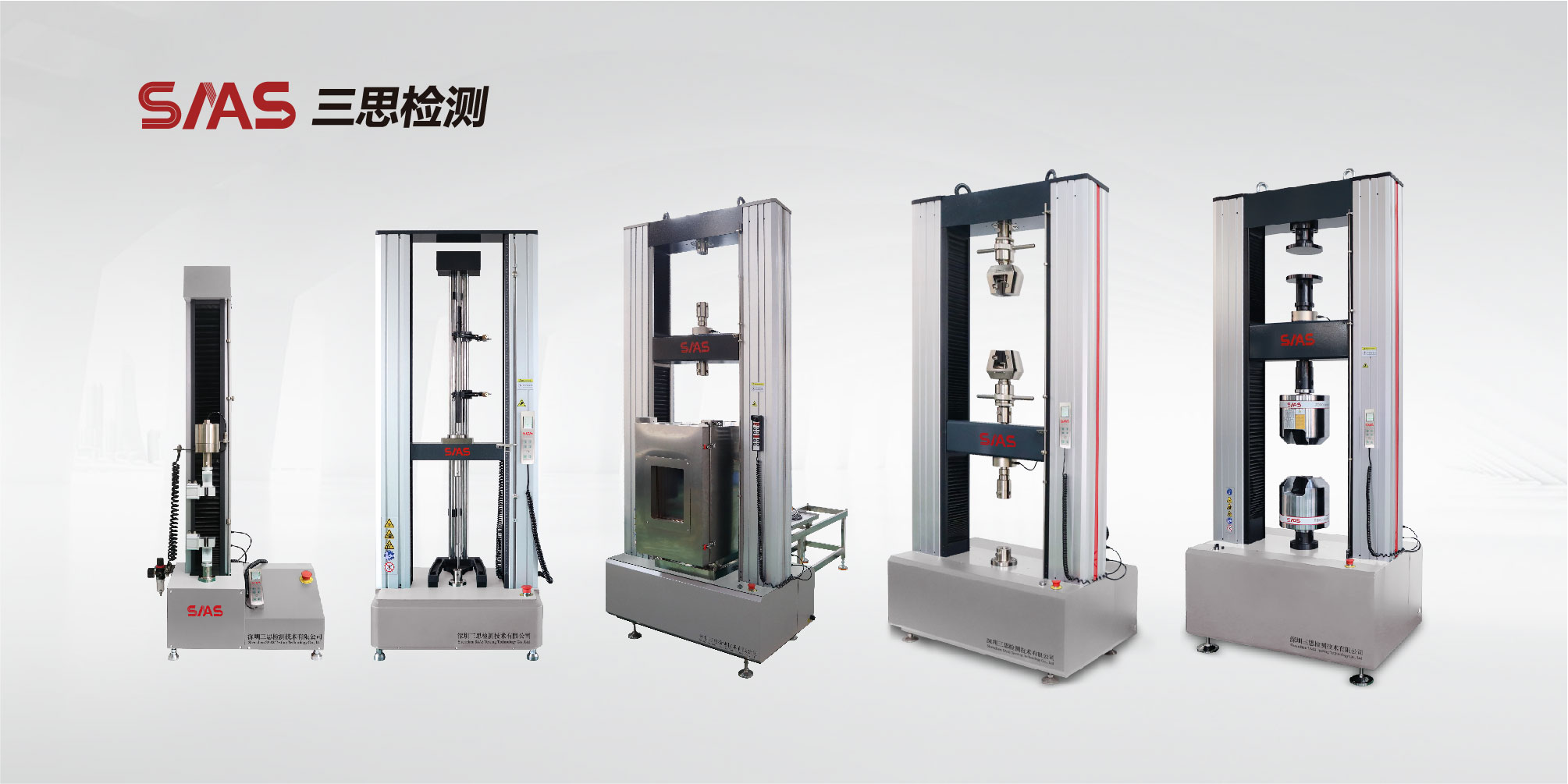
Shenzhen Sansi Testing Technology Co., Ltd. is a professional manufacturer of material testing equipment and service provider of testing solutions. The company integrates research and development, production, sales, and service. The electronic universal testing machine produced by it is one of its main products. This testing machine is mainly used for testing the mechanical properties of various materials and products, such as tension, compression, bending, shear, tearing, peeling, etc. It can achieve combined command control of stress, strain, speed, etc. According to GB, ISO, ASTM, DIN, JIS and other testing standards, the maximum test force, elastic modulus, fracture force, yield strength, tensile strength, tensile and compressive strength, various elongation stresses, elongation and other parameters can be automatically calculated. As we all know, mechanical testing machines are precision instruments that require careful operation in daily maintenance and handling of common faults. Below, the editor will introduce how to carry out daily maintenance and troubleshooting of the Sansi Testing Electronic Universal Testing Machine? If users encounter malfunctions that cannot be resolved during use, please contact the national service hotline of Sansi Testing at 4008-482-582.
1、 Daily maintenance
Regularly maintain the cleanliness and hygiene of equipment and computers.
2. Prevent high temperature, excessive humidity, dust, corrosive media, water, etc. from entering the interior of the machine or computer.
Regularly inspect and maintain the integrity of parts and components.
4. Pay attention to applying rust proof oil to easily rusted parts or long-term unused accessories, such as fixtures, pins, etc.
The jaws of the fixture or the surface where the fixture slides relative to each other should be kept clean to avoid collision. After completing a batch of samples, the debris left in the jaws should be cleaned in a timely manner. If the teeth of the jaws are blocked, please use a steel brush dipped in gasoline to clean, and avoid using hard tools for cleaning.
6. Pay attention to changing the oil of the main engine using the reducer every 2500 hours, and the lubricating oil should be MOBIL Gear 632 (Mobil).
2、 Fault handling
Malfunction of WINDOWS system:
If there is a malfunction in the WINDOWS system, please shut down the computer and restart it to check if the fault has been resolved; If the fault still cannot be eliminated, you can ask computer software professionals to help check and eliminate the fault, or search for information on the WINDOWS system and try to eliminate it; If the fault still cannot be resolved, the user can reinstall the WINDOWS system themselves or ask computer software personnel to help.
If the above problems still cannot be resolved, the user can contact or contact the computer supplier or local warranty unit through us to troubleshoot the WINDOWS issue for you.
2. Application software malfunction:
2.1 If the displacement display cannot be reset or is not available, it is generally due to the failure to start the computer in the prescribed order during startup, resulting in communication failure between the computer and the host. At this time, the application software can be exited and the software can be re run.
2.2 If the application software malfunction cannot be eliminated or repeatedly occurs, the application software should be reinstalled by reinstalling the installation disk configured by our company for the user, and the malfunction can be eliminated.
3 Communication failure:
If communication still cannot be achieved after connecting to the internet using the correct method, please follow the following steps to check:
① Unplug the communication cable from both ends and plug it back in.
② If it still cannot be restored to normal after two or three attempts, turn off the power supply of the testing machine and then turn it back on.
4. The host is out of battery:
Is the emergency stop switch pressed.
4.2 Check if the power cord is properly connected.
4.3 Whether the fuse inside the power socket is present or blown.
5 hosts have power but the machine is not running:
5.1 Check if the power supply voltage at the customer's location is normal, verify if the sensor connector is properly connected, and if there is no power value displayed.
5.2 Check if the buttons on the manual control box are malfunctioning.
5.3 Check if the limit device is functioning properly.
5.4 Check if the communication cable between the computer and the host has poor contact.
Is the communication port of the computer functioning properly.
5.6 Check if the internal wiring of the testing machine has poor contact.
5.7 Whether the parameters of the electrical system and servo system are set correctly (limited to our technical personnel).
5.8 Open the hood and observe if there are any error messages on the server (only for our technical personnel).
5.9 Check if the USB communication cable between the computer and the testing machine has come loose.
5.10 Is the testing machine grounded, and is the connection between the computer and the testing machine grounded.
Has the
5.11 sensor been hit by a collision.
Is the connector of the
5.12 sensor properly connected.
III Common fault analysis
Serial Number | Common faults and phenomena |
cause analysis |
Troubleshooting |
1 | The host is out of battery | Check if the power cord is properly connected | Check for any faults in the power supply and testing machine power slots at the customer's location |
Is the fuse inside the power socket present or blown | |||
Is the emergency stop switch pressed | Turn on the emergency stop switch again | ||
2 |
The host has power, but the machine is not functioning | Is the power supply voltage normal | Add a stabilized power supply to measure voltage stability |
Check if the sensor connector is properly connected and if there is no power value displayed | Re plug and unplug the sensor | ||
Whether the buttons on the manual control box are malfunctioning or if the wires are loose | Test whether the functions of each button on the manual control box are intact | ||
Is there any poor contact between the communication cable between the computer and the host | Reconnect the communication cable | ||
Are the parameters of the DSP system and servo system properly adjusted | Check the settings of each parameter | ||
Is the limit device functioning properly | Reset the position of the limit block | ||
Is the voltage of the switch power supply normal | Measure the voltage at each point of the switch power supply | ||
Do you immediately press the manual control box after turning on the host power | After turning on the host power, wait for 20 seconds before pressing the manual control box | ||
Are all the wires inside the testing machine tightly plugged in | Insert the wire again | ||
Are the hardware parameters inside the testing machine lost | Re enter the hardware parameters of the testing machine | ||
Open the hood and observe if there are any error messages on the server | If Error is displayed, the server has encountered an error and needs to be restarted | ||
3 |
Speed and Computer Inconsistent sending speed | Is the server parameter setting correct | Set the server parameters according to the model |
Is the power supply a standard 220V/380V power supply | Add a stabilized power supply to measure voltage stability | ||
Has the force calibration parameter been modified | Re calibrate the force value | ||
Has the amplification factor of the force sensor been changed | Reset the amplification factor of the force sensor | ||
4 |
Computer displays overload | Is the communication cable between the computer and the testing machine loose or intact | Rewiring |
Is the testing machine grounded, and is there grounding between the computer and the testing machine | Rewiring | ||
Is the sensor connector fully connected | Re plug and unplug the sensor | ||
If there are several sensors, have you selected the correct sensor to enter the program | Re enter the software and select the correct sensor model | ||
Is it in the order of 'turning on the testing machine first and then entering the computer software' to turn on and off the machine | Restart in order before entering the software again | ||
Whether to arbitrarily modify the calibration values during calibration | Re calibrate the force value | ||
Has the sensor been hit by a collision | What is the initial force when the sensor is turned on? Is there any obvious deformation in the appearance of the sensor? Please call our service hotline at 4008-482-582 | ||
The following methods can be used to determine whether overloading is caused by software communication or hardware crashes | Is the computer displaying normally when the software is offline and then online without turning off the testing machine | ||
Are there any virtual welding at each welding point (load channel), and are there any breakpoints at each welding point on the slingshot curve | Re weld | ||
Is the quality of the user's power strip intact | Replace a power strip and give it a try | ||
Is the power supply at the user's location within ± 10% of the normal voltage (220V/380V) | Check the power supply. If it is abnormal, please add a stabilized power supply | ||
Is the power grid at the user's location connected properly | Consult the electrician at the user's location | ||
Is the sensor damaged | If the user has an extensometer, insert the extensometer into the sensor interface to determine if the sensor is damaged? Damaged, please call the service hotline 4008-482-582 | ||
Is the sensor model selected correctly | Re enter the software and select the correct sensor model | ||
6 | The force value jumps around zero, but there is no response when applying force |
Fixture slippage caused |
Consider the clamping of fixtures |
7 | There was a problem while online | Whether the host power is turned on or immediately connected when the host power is turned on | Turn on the host power first and wait for 20 seconds to connect online |
Is the machine turned on in the normal startup sequence | Turn on the testing machine first, then turn on the computer, and finally connect the software | ||
Is the interface good | Re plug or replace |


Service Hotline
4008-482-582
vip@saastest.cn
215, Building Al, Kechuang Park, Songbai Road, Longteng Community, Shiyan Street, Baoan District, Shenzhen
Friendly Link1:https://www.saastest.cn/
Friendly Link2:https://www.chem17.com/product/detail/38039629.html
Products
Service
Contact Us
PREV
NEXT
Scan the code to follow us

WeChat Public

Micro-signal

Tiktok

Bilibili